
TRAE API Key Setup — Agent Third-Party Key Configuration Guide
Configure APIMaster.ai as a third-party API in TRAE IDE Agent. Use custom OpenAI Chat Completions settings with base URL and model ID for GPT, Claude, DeepSeek, and more.
TRAE IDE (ByteDance’s AI-native coding IDE) includes an Agent mode that understands tasks, plans work, and edits code autonomously. TRAE supports custom models via third-party API keys. APIMaster.ai provides an OpenAI Chat Completions–compatible endpoint—add a custom model in TRAE to connect.
Get API Key first. Keys stay on your machine only. Use the connectivity test if requests fail.
Prerequisites
- TRAE IDE installed (trae.ai or trae.cn).
- APIMaster API Key from the console.
- Target model id from the marketplace (e.g.
gpt-5.5,claude-sonnet-4-6,deepseek-v4-pro).
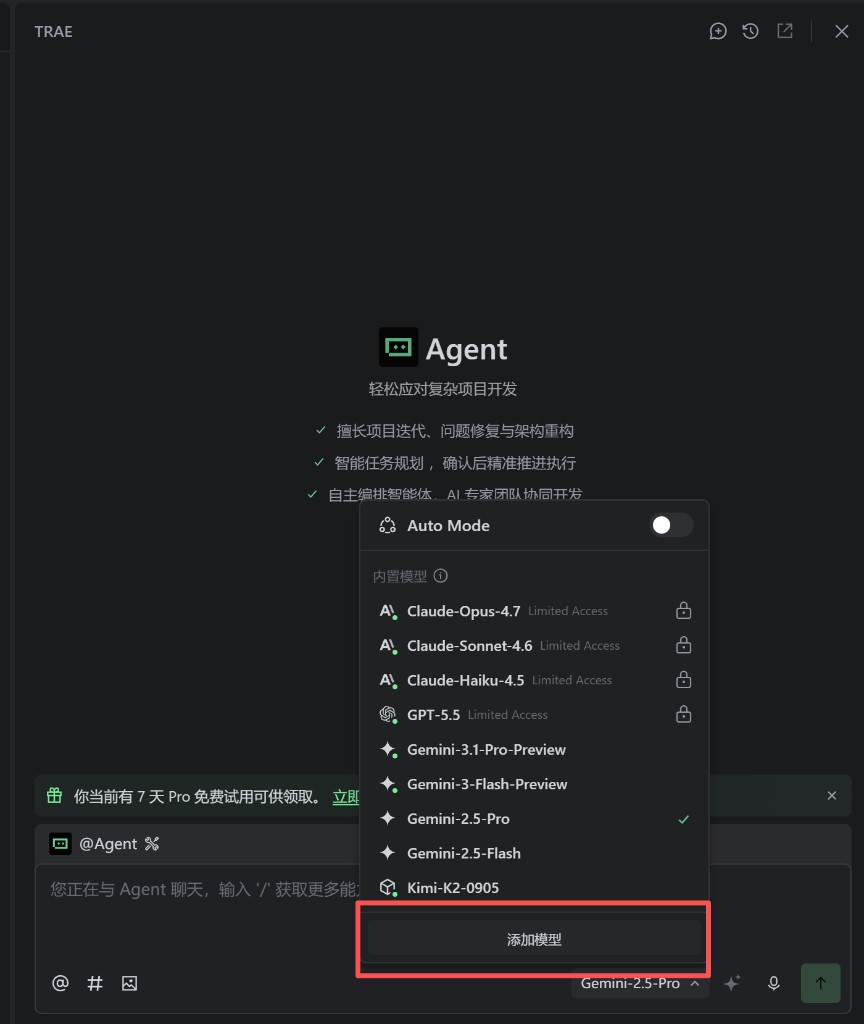
Step 1 — Open Agent and add a model
- Open TRAE IDE and go to the Agent chat (
@Agentin the input bar). - Click the model selector at the bottom-right (dropdown next to the current model name).
- At the bottom of the menu, click Add Model (添加模型).
Step 2 — Custom configuration
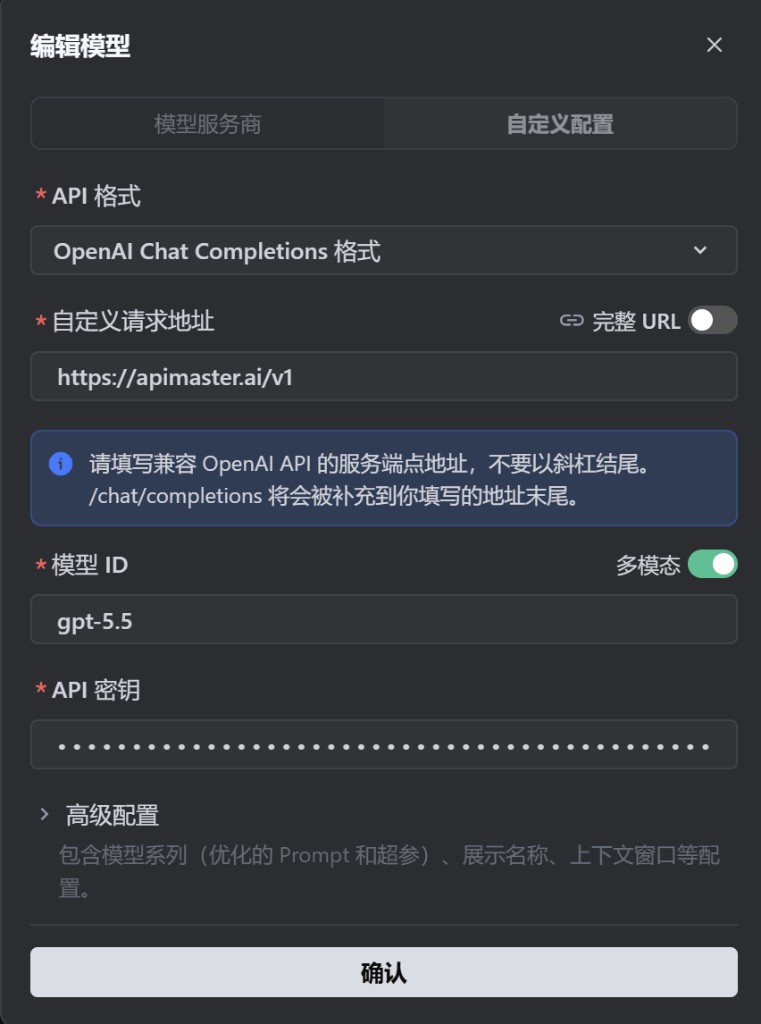
In the Edit Model dialog, open the Custom Configuration (自定义配置) tab and fill in:
| Field | Value |
|---|---|
| API format | OpenAI Chat Completions |
| Custom request URL | https://apimaster.ai/v1 (no trailing slash) |
| Full URL | Off (TRAE appends /chat/completions automatically) |
| Model ID | Marketplace model id, e.g. gpt-5.5, claude-sonnet-4-6 |
| Multimodal | On if the model supports images; off for text-only |
| API Key | Your APIMaster key |
Notes:
- Use an OpenAI-compatible endpoint:
https://apimaster.ai/v1. TRAE adds/chat/completionsto the path. - Model ID must match the marketplace id exactly.
- Click Confirm (确认) to save.
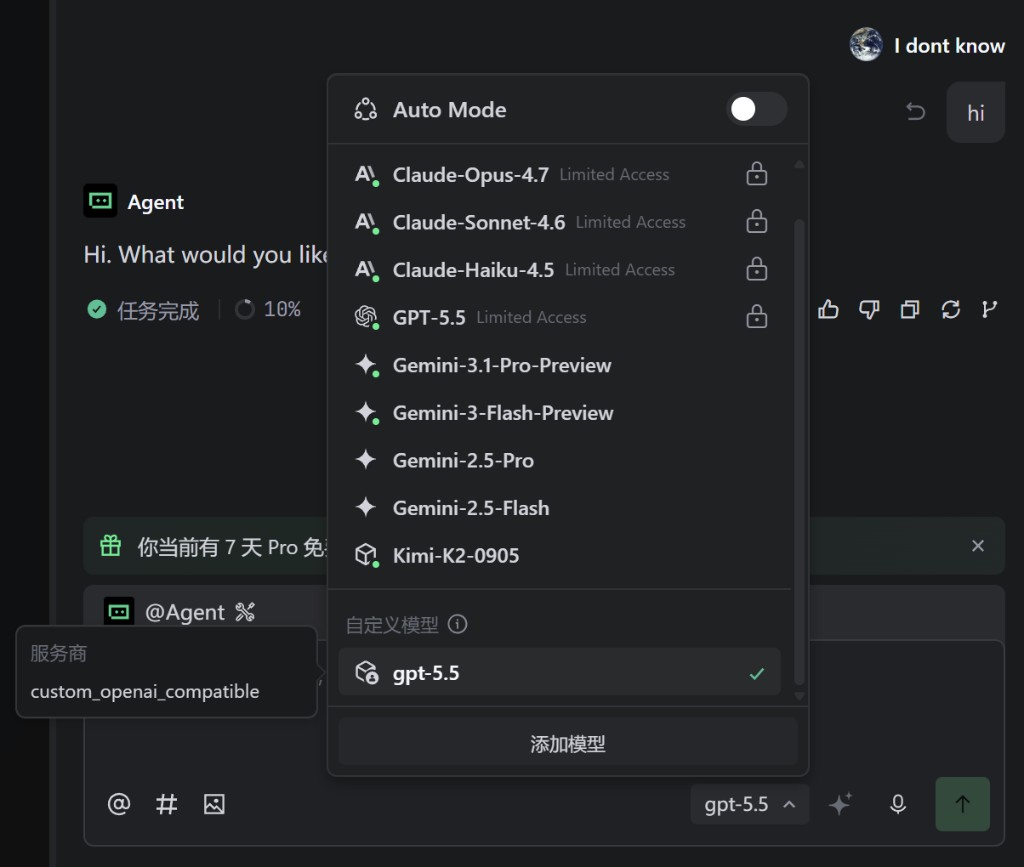
Step 3 — Select your custom model
- Open the model selector again.
- Under Custom Models (自定义模型), select the model you added (e.g.
gpt-5.5). - The bottom bar should show your model id.
Step 4 — Test Agent chat
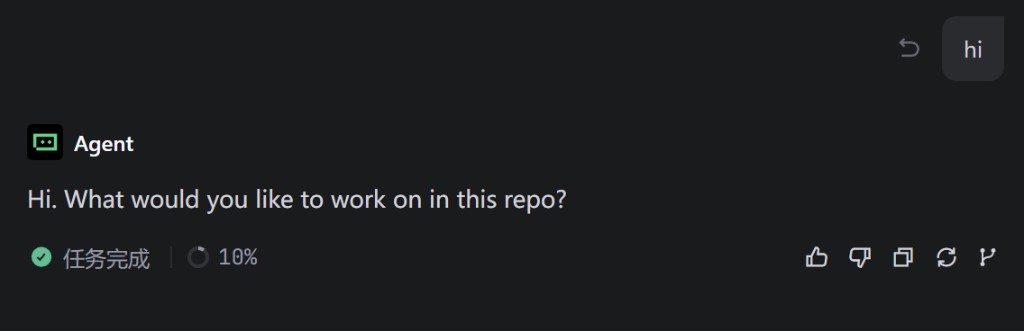
- Send a test message in Agent (e.g.
hior a small coding task). - A normal reply means the setup works.
- If TRAE shows provider
custom_openai_compatible, requests are going through APIMaster via OpenAI-compatible protocol.
Example model ids
| model id | Notes |
|---|---|
gpt-5.4 / gpt-5.5 |
GPT |
claude-haiku-4-5 |
Claude Haiku |
claude-sonnet-4-6 |
Claude Sonnet |
claude-opus-4-7 / claude-opus-4-8 |
Claude Opus |
deepseek-v4-pro / deepseek-v4-flash |
DeepSeek |
gemini-2.5-pro / gemini-2.5-flash |
Gemini |
Copy ids from the marketplace—do not guess aliases.
Troubleshooting
| Issue | Fix |
|---|---|
| 401 / Invalid API Key | Re-paste key; check it is active in the console |
| 404 / model not found | Re-copy Model ID from marketplace |
| Timeout | URL must be https://apimaster.ai/v1 (no trailing slash); check network/proxy |
| No Add Model button | Use Agent chat model selector (bottom-right), not Builder sidebar |
| Still on built-in model | Select your entry under Custom Models |
| Multimodal errors | Turn off Multimodal if the model is text-only |
Checklist
- Opened Agent model selector → Add Model
- API format = OpenAI Chat Completions
- Custom request URL =
https://apimaster.ai/v1(Full URL off) - Model ID from marketplace
- API Key = APIMaster key
- Custom model selected; Agent replies successfully