

Android Studio Quail 1 API Key Setup — Agent Third-Party Key Guide
Configure APIMaster.ai as a third-party API in Android Studio Quail 1 Agent. Add an OpenAI-compatible remote provider in Model Providers for GPT, Claude, Gemini, and more.
Android Studio Quail 1 (2026.1.1 stable) includes Agent and AI chat with support for third-party remote models. Follow Google’s Use a remote model flow: add APIMaster.ai as an OpenAI-compatible provider under Model Providers.
Get API Key first. Keys stay in local Android Studio settings only. Use the connectivity test if requests fail.
Prerequisites
- Android Studio Quail 1 installed (2026.1.1+; upgrade via Help → Check for Updates).
- APIMaster API Key from the console.
- Familiarity with available model ids on the marketplace (the list appears after Refresh).
Step 1 — Open Model Providers and add a provider
- Open Settings / Preferences (
File → Settingson Windows/Linux;Android Studio → Settingson macOS). - Expand Tools → AI and select Model Providers.
- Click + (Add).
- Choose Third-Party Remote Provider.
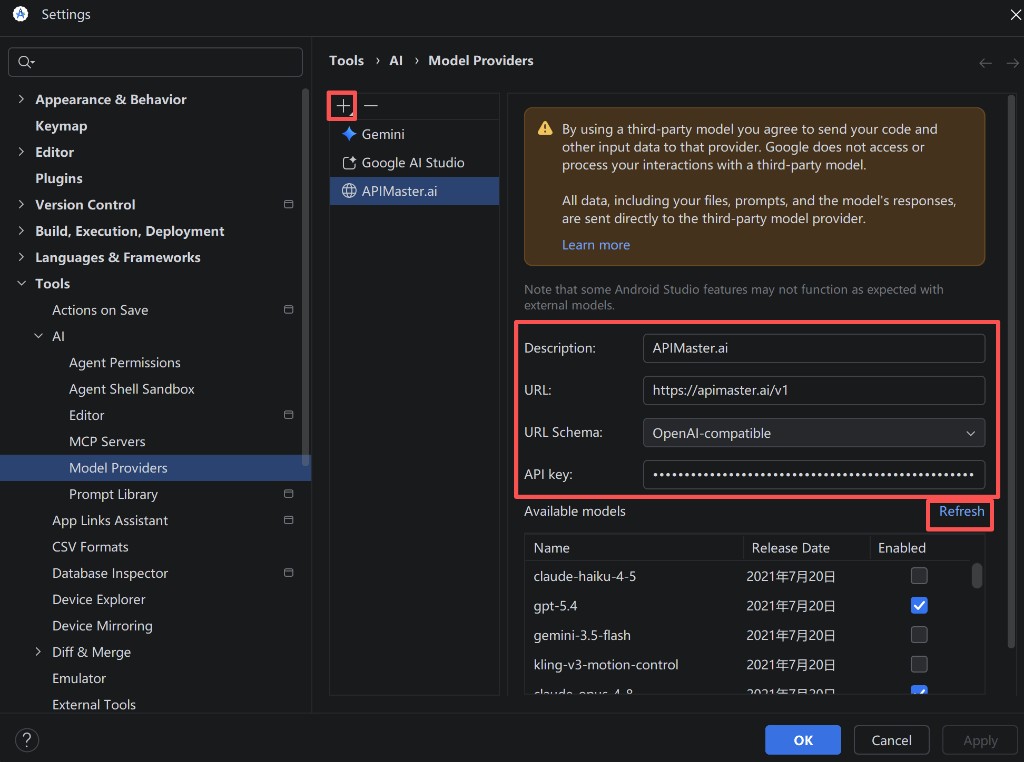
Step 2 — APIMaster connection details
Fill in the provider form:
| Field | Value |
|---|---|
| Description | APIMaster.ai (or any label you prefer) |
| URL | https://apimaster.ai/v1 (include /v1) |
| URL Schema | OpenAI-compatible |
| API key | Your APIMaster key |
Click Refresh to fetch available models from APIMaster.
In Available models, enable the models you want (multiple allowed), for example:
gpt-5.4/gpt-5.5/gpt-5.6-solclaude-opus-4-8/claude-sonnet-4-6gemini-2.5-pro/gemini-3.5-flash
Click OK to save.
Notes:
- URL Schema must be OpenAI-compatible (APIMaster uses OpenAI Chat Completions).
- If Refresh returns an empty list, verify the key, network, and model access on the marketplace.
- Third-party models support Chat and Agent; some Android Studio–specific AI features may require Google’s built-in models (Google docs).
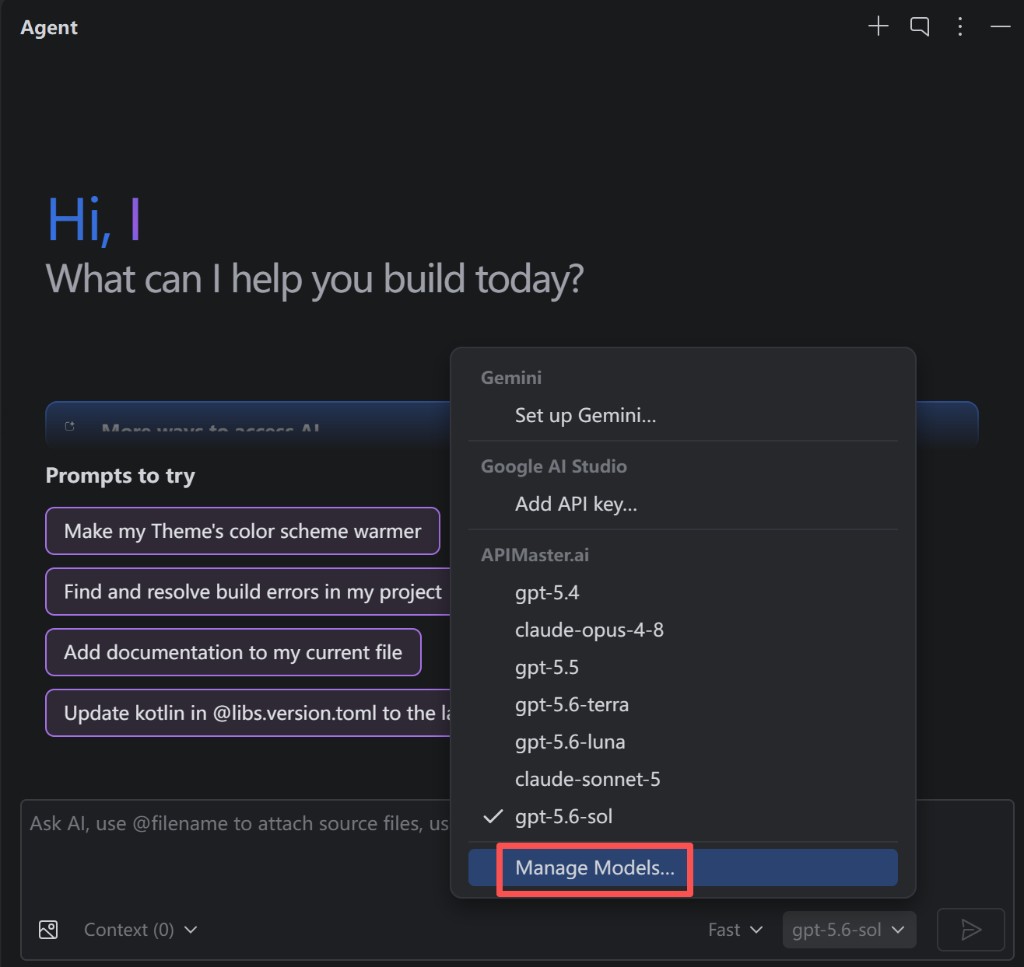
Step 3 — Select an APIMaster model in Agent
- Open the Agent panel (or AI chat) on the right.
- Click the model picker at the bottom-right (dropdown next to the current model).
- Under APIMaster.ai, pick an enabled model (e.g.
gpt-5.6-sol,claude-opus-4-8). - Use Manage Models… to return to Model Providers and adjust providers or enabled models.
Step 4 — Test Agent chat
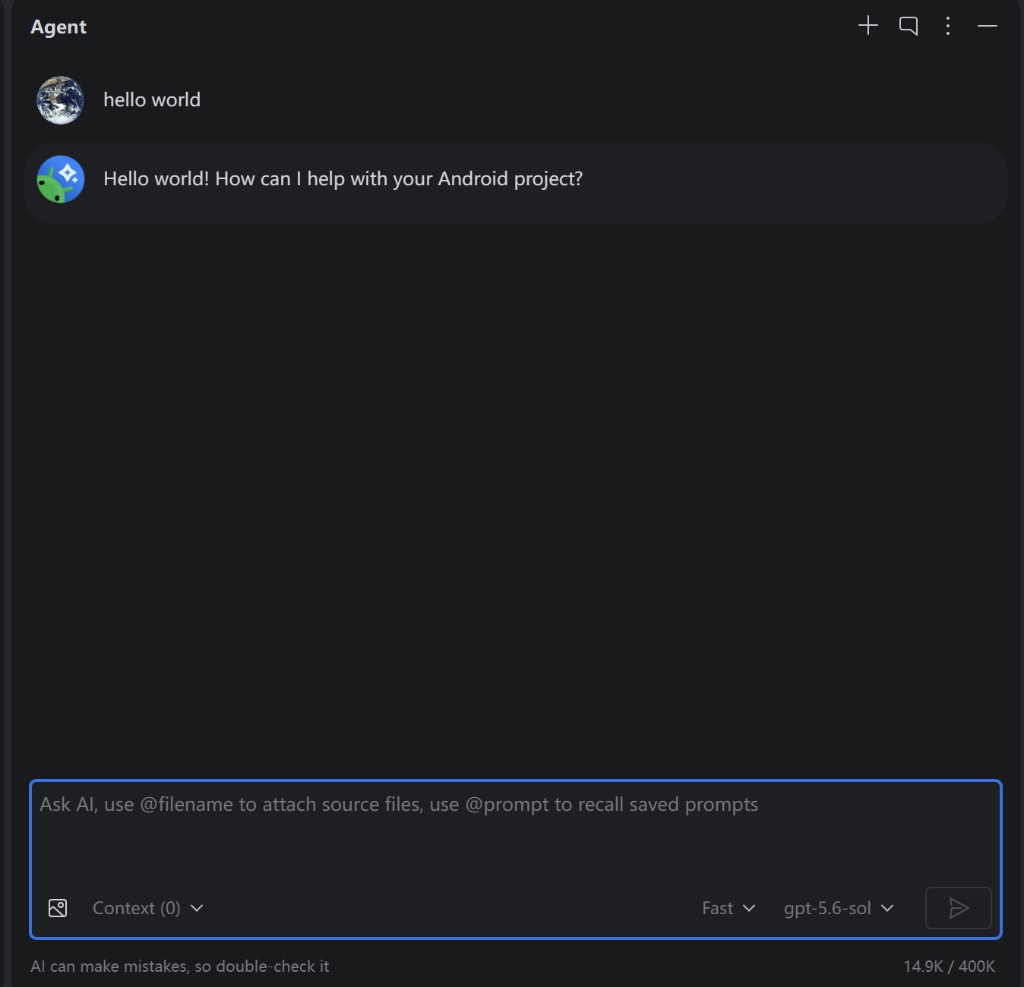
- Send a test message (e.g.
hello worldor an Android dev question). - A normal reply means setup works; billing follows the selected model via APIMaster.
Example model ids
After Refresh, the list reflects your account. Common ids:
| model id | Notes |
|---|---|
gpt-5.4 / gpt-5.5 / gpt-5.6-sol |
GPT |
claude-haiku-4-5 |
Claude Haiku |
claude-sonnet-4-6 / claude-sonnet-5 |
Claude Sonnet |
claude-opus-4-8 |
Claude Opus |
gemini-2.5-pro / gemini-3.5-flash |
Gemini |
deepseek-v4-pro |
DeepSeek |
See the marketplace for the full catalog; Refresh uses GET /v1/models.
Troubleshooting
| Issue | Fix |
|---|---|
| 401 / Invalid API Key | Re-paste key; confirm it is active in the console |
| Empty list after Refresh | URL must be https://apimaster.ai/v1; check key, network, and model access |
| Agent still uses Gemini | Switch to a model under APIMaster.ai in the picker |
| 404 / model not found | Uncheck invalid ids in Model Providers, Refresh, reselect |
| Some AI features missing | Third-party models mainly support Chat / Agent (Google docs) |
| No Model Providers menu | Requires Quail 1 (2026.1.1+); path: Tools → AI → Model Providers |
Checklist
- Android Studio Quail 1 (2026.1.1+) installed
- APIMaster.ai added under Tools → AI → Model Providers
- URL =
https://apimaster.ai/v1, URL Schema = OpenAI-compatible - API key = APIMaster key
- Refresh done; desired models enabled
- APIMaster model selected in Agent; chat works