OpenClaw API Key Setup — Custom Provider Configuration
How to install OpenClaw and configure APIMaster.ai as a custom OpenAI-compatible provider on Windows and macOS. Set API key and base URL to use Claude, GPT, and DeepSeek models.
OpenClaw is a local AI agent platform with a web chat UI. Connect APIMaster.ai (OpenAI-compatible) through openclaw onboard → Custom Provider.
Get API Key first. Use placeholder
your_apimaster_keybelow.
Prerequisites
- Windows, macOS, or Linux
- Node.js 22.19+ (Node 24 recommended; the installer upgrades if needed)
- APIMaster API Key ready
Step 1 — Install
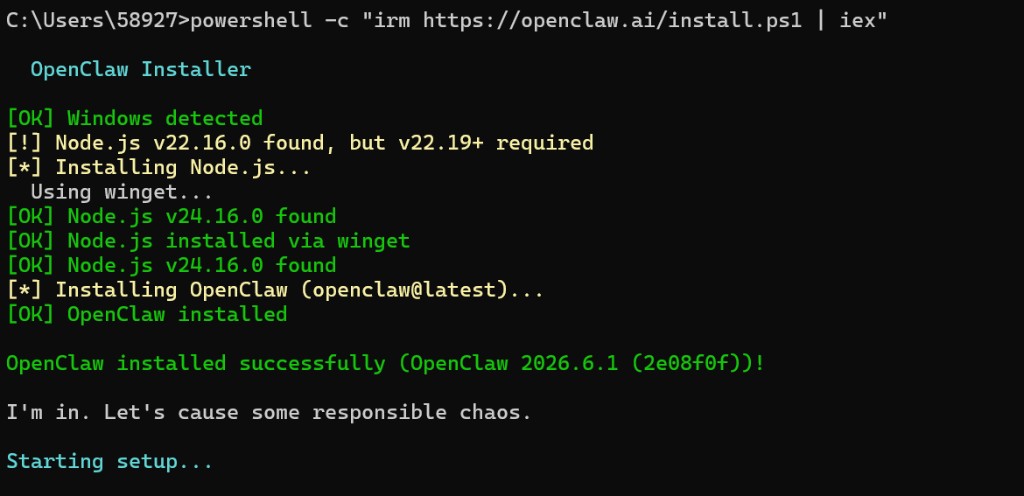
After install you usually get Starting setup… (onboard). To install only and configure later, see Install without onboard below.
Windows (PowerShell)
powershell -c "irm https://openclaw.ai/install.ps1 | iex"
macOS (Terminal)
- Open Terminal.app (or iTerm).
- Run the official installer (OpenClaw docs):
curl -fsSL https://openclaw.ai/install.sh | bash
On macOS the script will:
- Detect Apple Silicon vs Intel
- Install Homebrew if missing (requires an Administrator account)
- Install Node 24 (or another build ≥ 22.19) via Homebrew when needed
- Install the
openclawCLI and usually start onboard
Check Node first (optional):
node --version # need v22.19+, v24.x recommended
Install without onboard:
curl -fsSL https://openclaw.ai/install.sh | bash -s -- --no-onboard
Then run openclaw onboard when ready.
macOS config paths:
| Item | Path |
|---|---|
| Config | ~/.openclaw/openclaw.json |
| Workspace | ~/.openclaw/workspace |
| Sessions | ~/.openclaw/agents/main/sessions |
Screenshots below are from Windows, but the CLI onboard flow is the same on macOS (Custom Provider, Base URL, Skip channel, etc.).
Linux / WSL2
Same as macOS:
curl -fsSL https://openclaw.ai/install.sh | bash
Optional background Gateway:
openclaw onboard --install-daemon
(macOS: LaunchAgent · Linux: systemd user service)
Step 2 — openclaw onboard
Run anytime to (re)configure:
openclaw onboard
On macOS, use the same Terminal session. For a persistent Gateway:
openclaw onboard --install-daemon
- Security notice → Yes
- Model/auth provider → Custom Provider (OpenAI or Anthropic compatible endpoint)
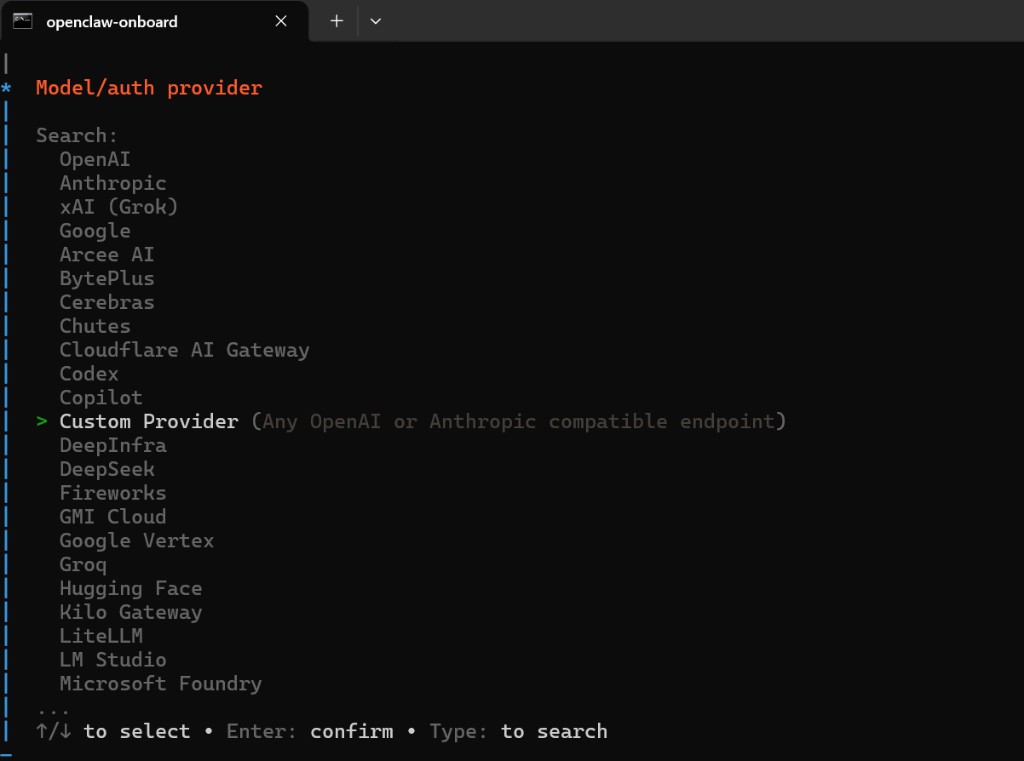
- Fill in:
| Field | Value |
|---|---|
| API Base URL | https://apimaster.ai/v1 |
| API key | Paste APIMaster key |
| Endpoint compatibility | OpenAI-compatible |
| Model ID | e.g. gpt-5.5 |
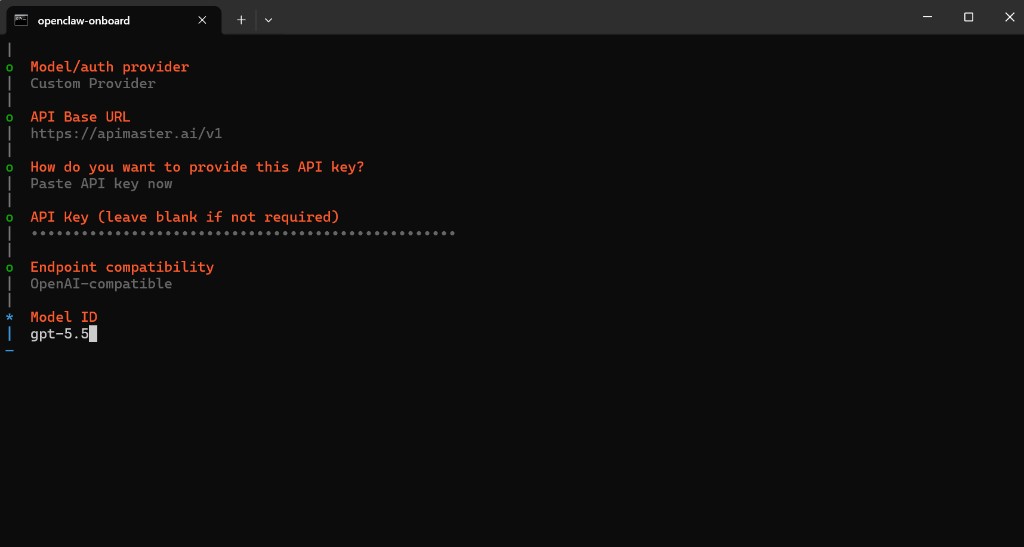
Model ID: any marketplace chat model id (gpt-5.4, claude-sonnet-4-6, …). Skip image models like gpt-image-2.
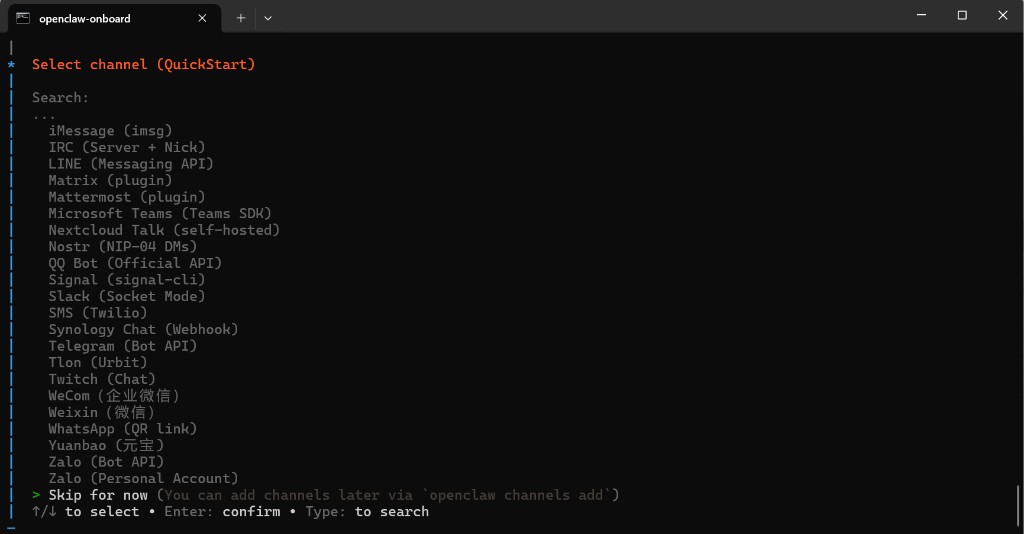
- Optional steps: Skip channel, web search, skills, hooks.
Step 3 — Web chat
If the browser does not open:
openclaw dashboard
If the page fails to load, run openclaw dashboard again or re-run openclaw onboard.
Step 4 — Test
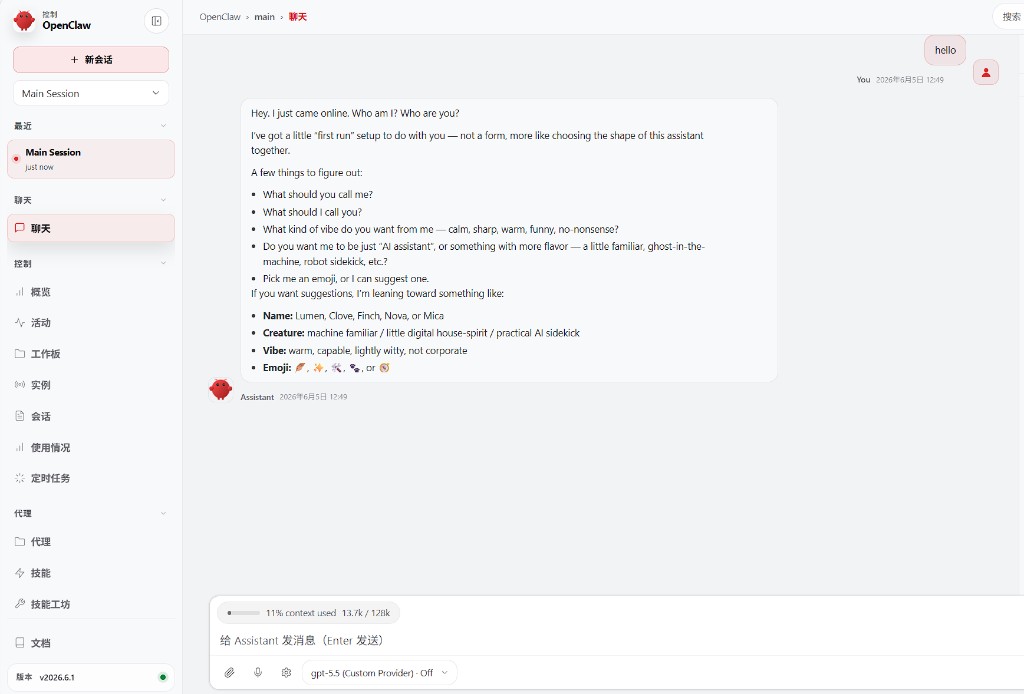
Pick the model under the input (e.g. gpt-5.5 (Custom Provider)), send hello, confirm a reply.
Troubleshooting
| Issue | Action |
|---|---|
| Bad config | openclaw onboard |
| Page won't open | openclaw dashboard |
| 401 / model error | Check URL, key, model id; connectivity test |
macOS
| Issue | Action |
|---|---|
openclaw: command not found |
Add to ~/.zshrc: export PATH="$(npm prefix -g)/bin:$PATH", reopen Terminal |
| Node version still wrong with nvm | nvm install 24 && nvm use 24 && nvm alias default 24, rerun installer |
| Homebrew install fails | Use an Administrator account, or install Homebrew first |
| Gateway not running | openclaw gateway status; try openclaw onboard --install-daemon |
Checklist
- Custom Provider +
https://apimaster.ai/v1+ key - Chat model id (not image)
-
openclaw dashboardworks - Test message succeeds