

OpenCode AI API Key Setup — OpenAI-Compatible Configuration
How to configure OpenCode AI with a custom API key from APIMaster.ai. Add APIMaster as an OpenAI-compatible provider in opencode.jsonc and access Claude, GPT-5.5, and DeepSeek with image input (Vision) and optional Reasoning tiers.
OpenCode Desktop is the graphical client for OpenCode (currently beta): local agent sessions, file edits, and shell execution. APIMaster.ai is OpenAI-compatible — add it under Settings → Providers → Custom provider.
Get your API Key first. Use placeholder
your_apimaster_keybelow; screenshots mask real keys.
Prerequisites
- OpenCode Desktop installed from opencode.ai/download.
- Windows:
opencode-desktop-win-x64.exe - macOS:
brew install --cask opencode-desktopor.dmg - Linux:
.deb/.rpm/ AppImage
- Windows:
- APIMaster API Key from the console.
Step 1 — Open Providers
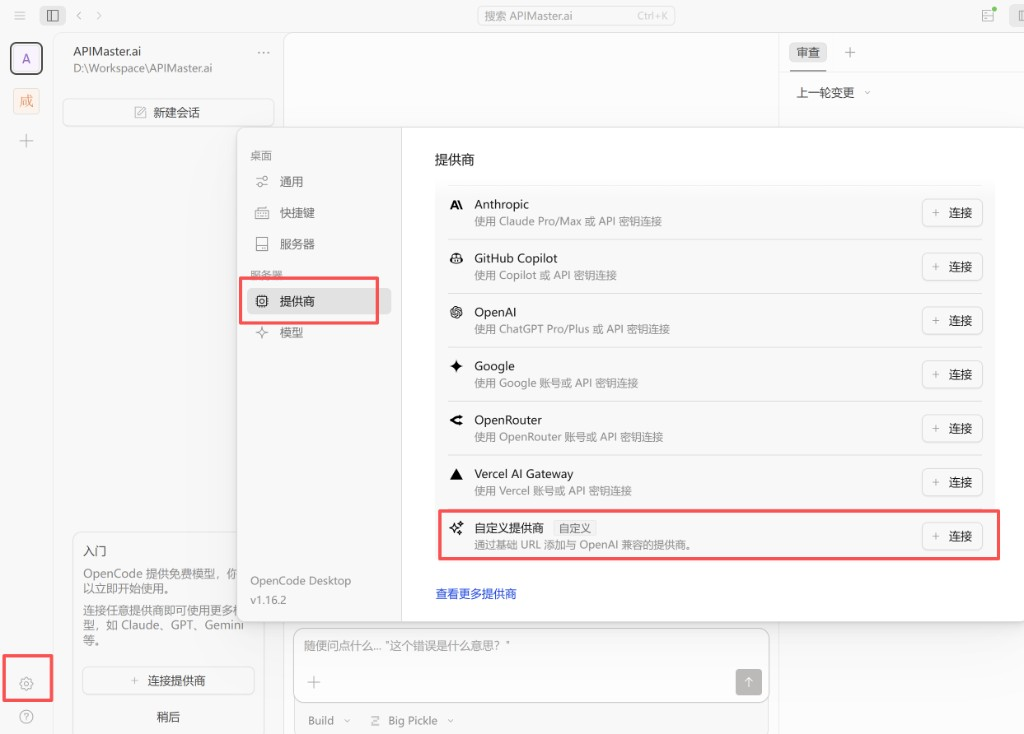
- Launch OpenCode Desktop and open a workspace.
- Click the gear icon (bottom-left).
- Select Providers in the sidebar.
- Scroll to Custom provider (Add an OpenAI-compatible provider by base URL).
- Click + Connect.
Step 2 — Custom provider form
| Field | Value |
|---|---|
| Provider ID | apimaster |
| Display name | APIMaster.ai |
| Base URL | https://apimaster.ai/v1 |
| API key | Your APIMaster key |
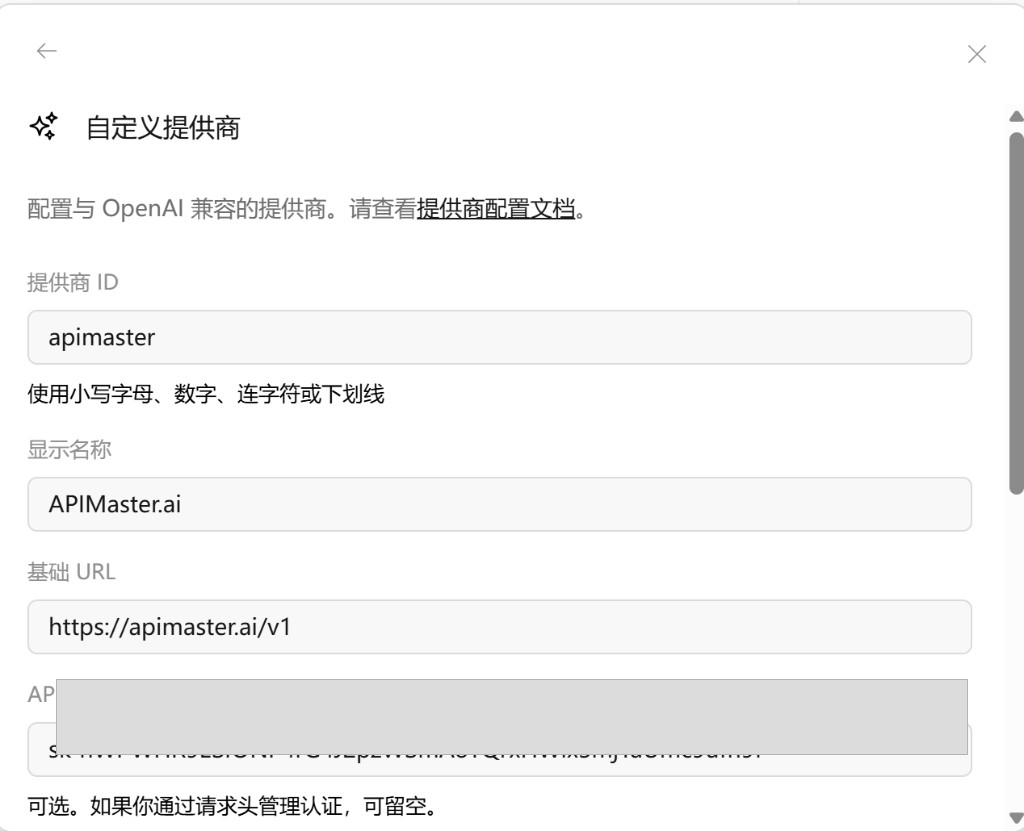
Leave Headers empty unless you authenticate via headers only.
Step 3 — Add models & Submit
On the next screen, map models (left = label in OpenCode, right = model id sent to APIMaster — usually the same):
| Left | Right |
|---|---|
gpt-5.4 |
gpt-5.4 |
claude-sonnet-4-6 |
claude-sonnet-4-6 |
- Click + Add model for more rows.
- Click Submit.
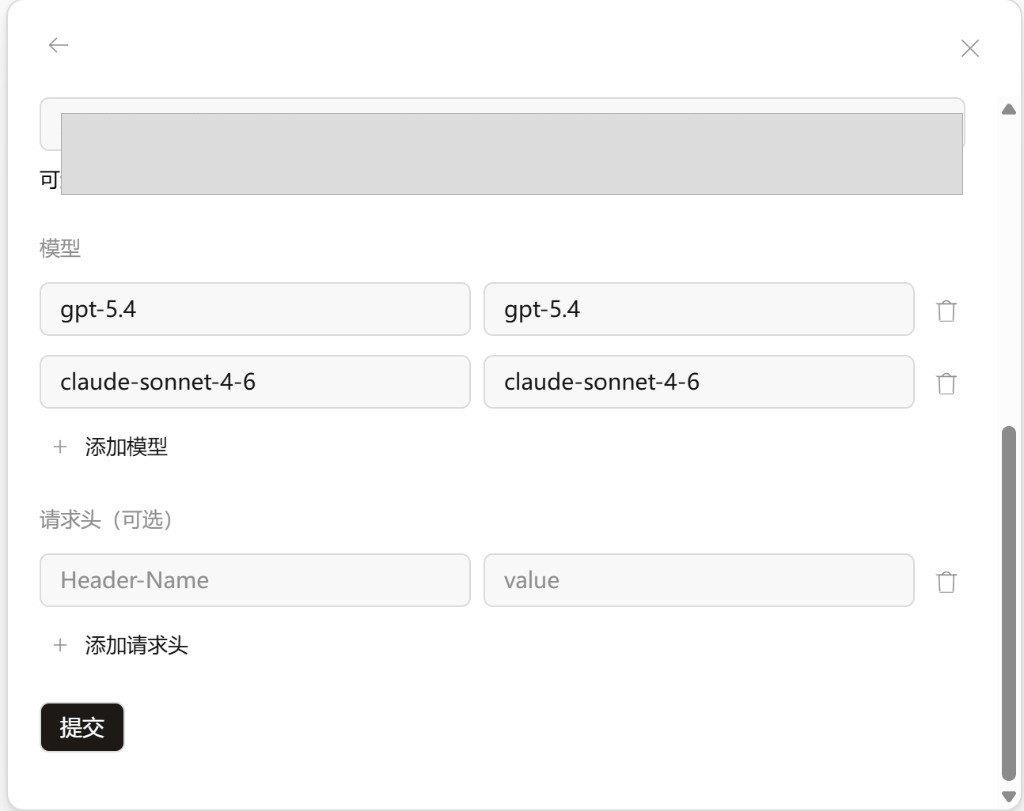
Pick ids from the marketplace. Avoid image-generation-only models (e.g. gpt-image-2) for agent chat.
Need image recognition (Vision)?
gpt-5.5,claude-sonnet-4-6,claude-opus-4-7,claude-opus-4-8, andclaude-haiku-4-5support image input, but OpenCode needs an extra capability declaration — see Enable image input for GPT and Claude.
Step 4 — Pick a model
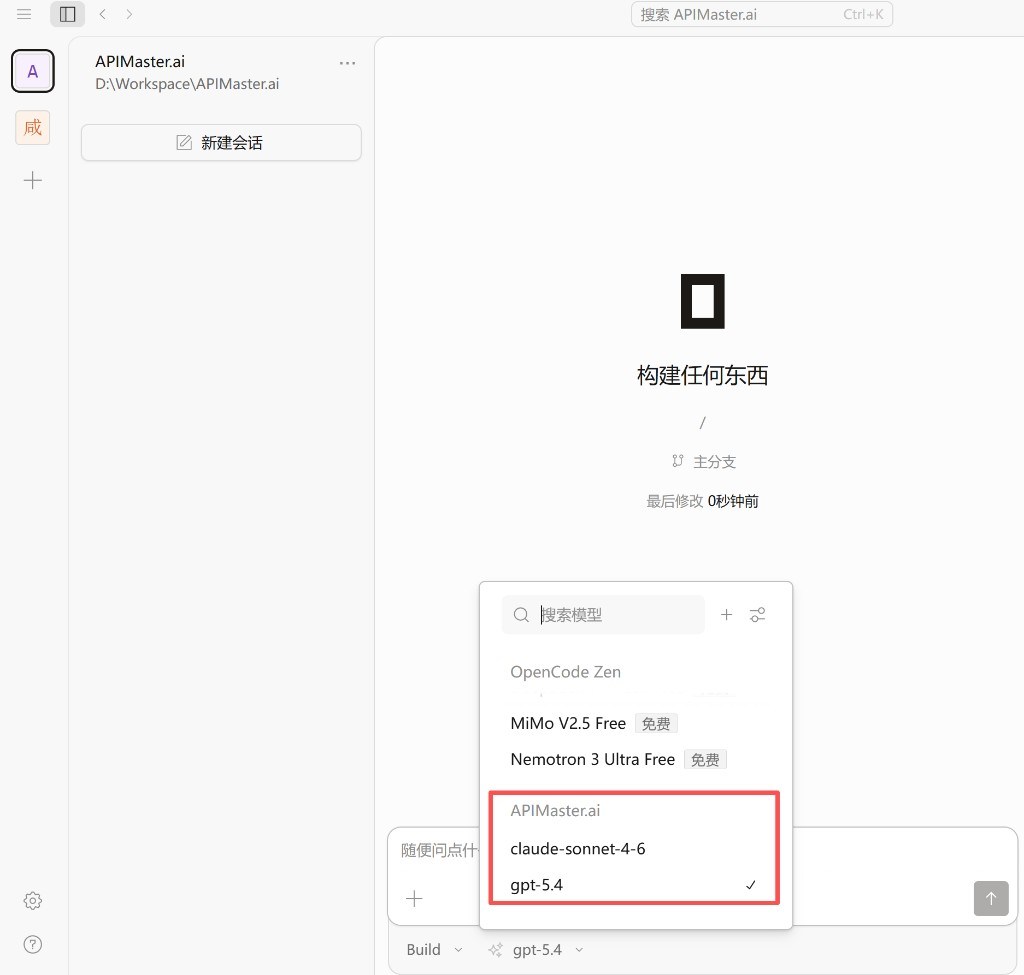
- Start or open a session.
- Open the model dropdown below the input.
- Under APIMaster.ai, select a model (e.g.
claude-sonnet-4-6).
Step 5 — Test
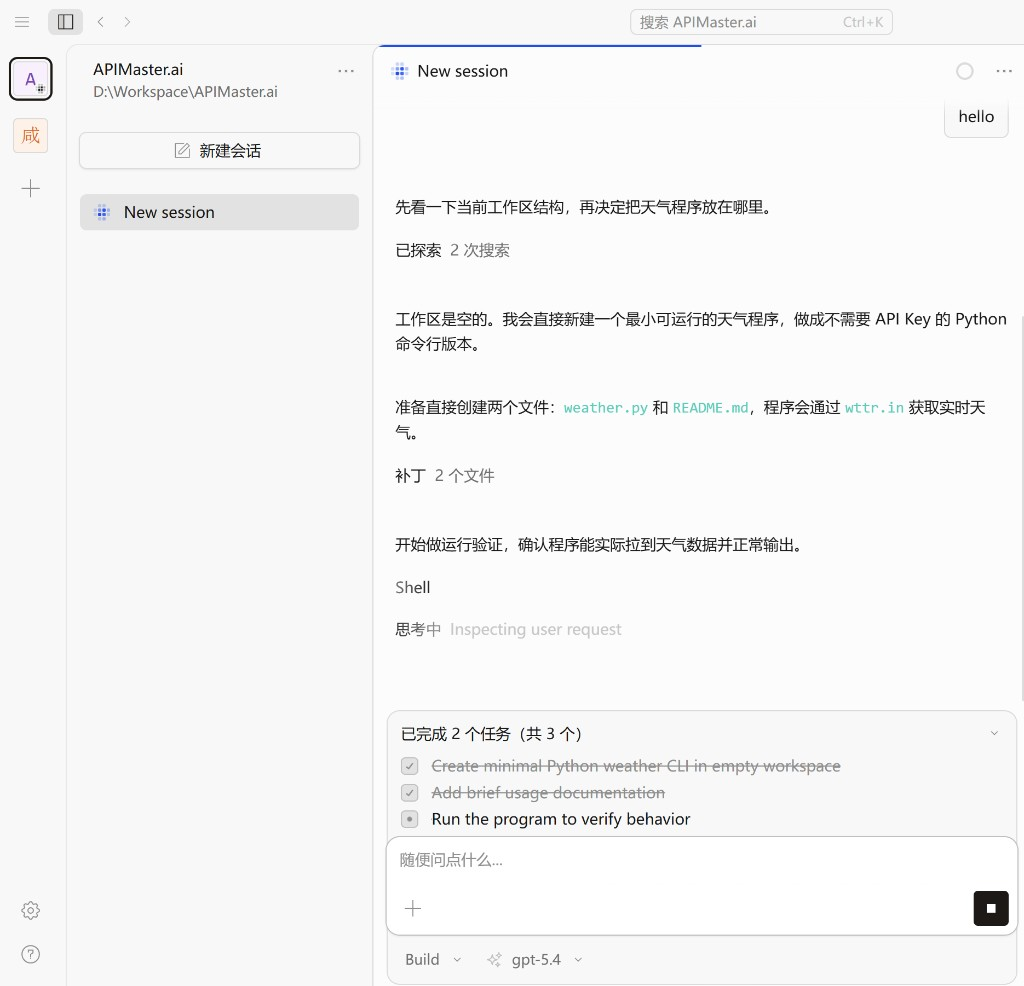
Send hello or a small coding task. A normal Assistant reply (file edits / shell) means APIMaster is connected.
Advanced: opencode.jsonc & Reasoning
The UI flow above is enough for a quick start. To configure Reasoning / thinking effort tiers (low, high, max, …) for the same model id, edit opencode.jsonc.
Config file location
| OS | Path |
|---|---|
| macOS / Linux | ~/.config/opencode/opencode.jsonc |
| Windows | C:\Users\<username>\.config\opencode\opencode.jsonc |
Create the file if missing. Restart OpenCode Desktop or start a new session after saving.
API Key (do not put in jsonc)
Do not store your API Key in opencode.jsonc.
Use:
/connectin the terminal, or- Settings → Providers → Connect Provider (same as Steps 1–2 above).
Keep secrets in OpenCode’s auth store; jsonc only defines provider, models, and Reasoning variants.
APIMaster provider in jsonc
Provider id: apimaster. npm package: @ai-sdk/openai-compatible.
baseURL must be:
https://apimaster.ai/v1
Not https://apimaster.ai/ — OpenCode appends /chat/completions. Without /v1 you get https://apimaster.ai/chat/completions → 404 Not Found.
Also not
https://api.apimaster.ai/v1— theapi.prefix host may cause TLS / connection failures in testing. The correct host ishttps://apimaster.ai/v1.
Full example with Reasoning variants — download and overwrite OpenCode’s config:
- Download opencode.jsonc
- Overwrite (or save as):
- macOS / Linux:
~/.config/opencode/opencode.jsonc - Windows:
C:\Users\<username>\.config\opencode\opencode.jsonc
- macOS / Linux:
- Configure API Key via
/connector UI (never in jsonc). - Restart OpenCode Desktop or start a new session.
Back up your existing file before overwrite, or merge only the
provider.apimasterblock.
Minimal shape:
{
  "$schema": "https://opencode.ai/config.json",
  "provider": {
    "apimaster": {
      "name": "APIMaster.ai",
      "npm": "@ai-sdk/openai-compatible",
      "options": { "baseURL": "https://apimaster.ai/v1" },
      "models": {
        "gpt-5.5": {
          "name": "gpt-5.5",
          "attachment": true,
          "modalities": {
            "input": ["text", "image"],
            "output": ["text"]
          },
          "variants": {
            "low": { "reasoningEffort": "low" },
            "high": { "reasoningEffort": "high" }
          }
        }
      }
    }
  }
}
The
attachmentandmodalitiesfields ongpt-5.5above enable image input (Vision) — see Enable image input for GPT and Claude. Omit them if you only need text chat.
Reasoning principles
variants= multiple Reasoning tiers for one model id in the UI.- For OpenAI-compatible APIs, OpenCode maps
reasoningEffort→reasoning_effortin the request body. - Variant names should match the actual parameter (
high→"reasoningEffort": "high"). - Each model supports different tiers — configure per official docs; no hidden remapping.
Reasoning tiers by model
| Model | Reasoning variants | Notes |
|---|---|---|
gpt-5.4 |
low, medium, high, xhigh |
GPT reasoning |
gpt-5.5 |
low, medium, high, xhigh |
GPT reasoning |
deepseek-v4-flash |
high, max |
DeepSeek thinking (recommended) |
deepseek-v4-pro |
high, max |
DeepSeek thinking (recommended) |
claude-sonnet-4-6 |
low, medium, high, max |
Claude Sonnet effort |
claude-opus-4-7 |
low, medium, high, xhigh, max |
Claude Opus effort |
claude-opus-4-8 |
low, medium, high, xhigh, max |
Claude Opus effort |
claude-haiku-4-5 |
none | No unconfirmed effort tiers |
minimax-m3 |
none | No unconfirmed effort tiers |
See opencode.jsonc for the full file.
Switching Reasoning in OpenCode
- Save
opencode.jsonc, then restart or new session. - Use the model / Reasoning dropdown (e.g.
gpt-5.4 / high). - If supported in your build:
Ctrl + Shift + Dcycles Reasoning tiers.
Enable image input for GPT and Claude
APIMaster.ai models such as gpt-5.5, claude-sonnet-4-6, claude-opus-4-7, claude-opus-4-8, and claude-haiku-4-5 support image input / Vision — reading screenshots, photos, charts for recognition, description, OCR, or coding from an image.
A model supporting images ≠ OpenCode sending the image. Even though the APIMaster.ai model itself supports vision, you must declare the capability in
opencode.jsonc. Otherwise OpenCode may not send the image as multimodal input — it just puts the attachment / file name into the prompt, and the model replies something like "the current model does not support image input."
The two fields to declare
For each model you want to use with images, add:
"attachment": true,
"modalities": {
  "input": ["text", "image"],
  "output": ["text"]
}
attachment: truetells OpenCode this model accepts attachments.modalities.inputcontaining"image"tells OpenCode this model supports image input, so OpenCode converts the image into multimodalimage_urlcontent.
Full example (GPT and Claude)
Download opencode.jsonc (fields already included), or merge the provider.apimaster block below into your existing config:
{
  "$schema": "https://opencode.ai/config.json",
  "disabled_providers": [],
  "provider": {
    "apimaster": {
      "name": "APIMaster.ai",
      "npm": "@ai-sdk/openai-compatible",
      "options": {
        "baseURL": "https://apimaster.ai/v1"
      },
      "models": {
        "gpt-5.5": {
          "name": "gpt-5.5",
          "attachment": true,
          "modalities": {
            "input": ["text", "image"],
            "output": ["text"]
          },
          "variants": {
            "low": { "reasoningEffort": "low" },
            "medium": { "reasoningEffort": "medium" },
            "high": { "reasoningEffort": "high" },
            "xhigh": { "reasoningEffort": "xhigh" }
          }
        },
        "claude-sonnet-4-6": {
          "name": "claude-sonnet-4-6",
          "attachment": true,
          "modalities": {
            "input": ["text", "image"],
            "output": ["text"]
          },
          "variants": {
            "low": { "reasoningEffort": "low" },
            "medium": { "reasoningEffort": "medium" },
            "high": { "reasoningEffort": "high" },
            "max": { "reasoningEffort": "max" }
          }
        },
        "claude-opus-4-7": {
          "name": "claude-opus-4-7",
          "attachment": true,
          "modalities": {
            "input": ["text", "image"],
            "output": ["text"]
          },
          "variants": {
            "low": { "reasoningEffort": "low" },
            "medium": { "reasoningEffort": "medium" },
            "high": { "reasoningEffort": "high" },
            "xhigh": { "reasoningEffort": "xhigh" },
            "max": { "reasoningEffort": "max" }
          }
        },
        "claude-opus-4-8": {
          "name": "claude-opus-4-8",
          "attachment": true,
          "modalities": {
            "input": ["text", "image"],
            "output": ["text"]
          },
          "variants": {
            "low": { "reasoningEffort": "low" },
            "medium": { "reasoningEffort": "medium" },
            "high": { "reasoningEffort": "high" },
            "xhigh": { "reasoningEffort": "xhigh" },
            "max": { "reasoningEffort": "max" }
          }
        },
        "claude-haiku-4-5": {
          "name": "claude-haiku-4-5",
          "attachment": true,
          "modalities": {
            "input": ["text", "image"],
            "output": ["text"]
          }
        }
      }
    }
  }
}
Notes:
- To enable image input only for
gpt-5.5, addattachmentandmodalitiestogpt-5.5alone; leave others unchanged. - To enable only Claude, add these fields to the Claude models only.
- Keep each model's existing Reasoning variants (
low/medium/high/xhigh/max) — image fields and Reasoning do not conflict. - After editing
opencode.jsonc, fully quit and restart OpenCode, or at least start a new session, so the config reloads. - Never put the API Key in this file — configure it via
/connector the UI (see Security below).
Image source: prefer local upload / base64
- Recommended: upload a local PNG / JPG in OpenCode. Ideally OpenCode converts it to a base64 data URL (
data:image/png;base64,...) before sending to APIMaster — this is the verified working path. - Passing a public image URL directly may fail. APIMaster / the upstream may fail to download a public image due to network, format, size, MIME, or hotlink protection, returning:
In that case, use a base64 data URL or local upload instead of relying on the model side to download a public URL.Error while downloading file. Upstream status code: 400.
Test that image recognition works
Option A — Test in OpenCode
- Switch to
apimaster/gpt-5.5orapimaster/claude-sonnet-4-6in the model dropdown. - Upload a PNG / JPG image.
- Type:
Describe the main content of this image.
- With correct config, the model should describe the image content.
- If the model only mentions a file / attachment name, or replies "image input not supported," OpenCode is likely not sending the image content — check the model's
attachmentandmodalitiesfields and restart OpenCode.
Option B — Test via the API directly
Useful to tell an APIMaster model issue from an OpenCode adapter issue. Never hardcode a real key — use an environment variable.
Linux / macOS:
export APIMASTER_API_KEY="your APIMaster API key"

curl https://apimaster.ai/v1/chat/completions \
  -H "Authorization: Bearer $APIMASTER_API_KEY" \
  -H "Content-Type: application/json" \
  -d '{
    "model": "gpt-5.5",
    "messages": [
      {
        "role": "user",
        "content": [
          { "type": "text", "text": "Describe this image." },
          {
            "type": "image_url",
            "image_url": {
              "url": "data:image/png;base64,YOUR_IMAGE_BASE64"
            }
          }
        ]
      }
    ],
    "max_tokens": 1000
  }'
Swap model to claude-sonnet-4-6 to test Claude the same way (verified HTTP 200 with image recognition).
Windows PowerShell:
$env:APIMASTER_API_KEY = "your APIMaster API key"
# Convert a local image to base64, put it into image_url.url as data:image/png;base64,...
# Then call https://apimaster.ai/v1/chat/completions with the same JSON body.
A 200 response that describes the image means image input works on the APIMaster side; if OpenCode still fails, the problem is in OpenCode's
attachment/modalitiesconfig or a missing restart.
Troubleshooting
UI setup
| Issue | Fix |
|---|---|
| 401 | Check key; rotate if exposed |
| Model not found | Base URL must be https://apimaster.ai/v1; model id must match marketplace |
| No APIMaster models | Edit provider in Settings → add mappings → Submit |
| Slow / timeout | Try another model; use API Key Tester |
Reasoning / jsonc
Why only high and max for DeepSeek?
Official OpenAI-compatible thinking effort for DeepSeek is high and max. Avoid low / medium / xhigh that get remapped unpredictably.
Why max for Claude Sonnet, not xhigh?
Sonnet’s top tier is max; xhigh is for Opus (claude-opus-4-7 / claude-opus-4-8).
Why no variants for Haiku or MiniMax M3?
Without documented reasoningEffort values, skip variants — the model still works; UI just won’t show Reasoning sub-tiers.
Still getting 400?
baseURL=https://apimaster.ai/v1(not site root).- Model id spelling matches the marketplace.
- Key configured via
/connector UI. - Remove
variantstemporarily — if plain requests work, the chosenreasoning_effortmay be unsupported for that model.
Image input / Vision
Why does OpenCode say "the current model does not support image input"?
- APIMaster.ai's
gpt-5.5and several Claude models do support image input; this message usually means OpenCode is not sending the image as multimodal input. - Check that the model in
opencode.jsonchas:"attachment": true, "modalities": { "input": ["text", "image"], "output": ["text"] } - Confirm you restarted OpenCode after editing.
- Confirm
baseURLishttps://apimaster.ai/v1. - Confirm the APIMaster API Key is valid.
- If a public image URL fails, use a base64 data URL or local upload.
Why does the model only see the attachment name, not the image?
- Usually OpenCode did not read and convert the attachment into image input — it just put the file / attachment name into the prompt.
- Enable
attachment: trueandmodalities.input: ["text", "image"], and use a model that supports image input.
Why does a public image URL error out?
- APIMaster or the upstream may be limited by network, format, file size, MIME, hotlink protection, or proxy when downloading a public image.
- On
Error while downloading file. Upstream status code: 400., switch to a base64 data URL.
Still not working after adding attachment?
- Fully quit and restart OpenCode.
- Start a new session to test.
- Confirm the session's active model is the one you configured with image fields.
- Confirm the API Key is valid.
- Check OpenCode logs for 401 / 400 / unsupported image / invalid content type errors.
- Use Option B — Test via the API directly with a base64 image to separate an APIMaster model issue from an OpenCode adapter issue.
Security
- Do not put the APIMaster API Key in
opencode.jsonc; that file only holds provider, models, image capabilities, and Reasoning. - Do not paste the key into chat, screenshots, issues, public docs, or code repos.
- Rotate keys that appeared in screenshots or logs — revoke and regenerate in the console, then update the provider in OpenCode.
- Prefer OpenCode's
/connectflow, environment variables, or local credential storage to manage the API Key. - OpenCode can read/write files and run shell commands — use trusted workspaces only.
Checklist
- OpenCode Desktop installed
- Custom provider connected or
apimasterinopencode.jsonc - Base URL /
baseURL=https://apimaster.ai/v1(nothttps://apimaster.ai/) - API Key via
/connector UI (not in jsonc) - At least one chat model mapped
- (Optional) Reasoning variants match official tiers
- Test message succeeds
Image input checklist
-
baseURLishttps://apimaster.ai/v1(nothttps://api.apimaster.ai/v1) - Using a vision-capable model, e.g.
gpt-5.5or a Vision-capable Claude model - The model has
attachment: true - The model's
modalities.inputcontains"image" - OpenCode restarted after editing
opencode.jsonc - API Key is valid
- Test image is a common format (PNG / JPG)
- If a public image URL fails, tried a base64 data URL
Summary
- Keys:
baseURL(https://apimaster.ai/v1), model id, API Key (/connector UI), optional Reasoning variants. - Variant names = actual
reasoning_effortvalues. - Configure tiers per model; skip variants when unsupported (Haiku, MiniMax M3).