

Cursor API Key Setup — APIMaster Third-Party Key Guide
Use APIMaster.ai API keys in Cursor for DeepSeek, GPT, and Claude. Covers Settings custom models, GPT/Claude pitfalls, and the official Codex / Claude Code extension workflow.
Cursor is an AI-powered code editor. APIMaster.ai provides OpenAI-compatible and Claude Messages APIs. You can connect via Cursor’s built-in third-party key settings or via official extensions.
Start with Get API Key. Keep keys on your machine only—do not share in chats or screenshots.
Which approach to use
| Goal | Recommended |
|---|---|
| Models not built into Cursor (e.g. DeepSeek) | Cursor Settings → Models + custom model id |
| GPT-5.4 / GPT-5.5 billed via APIMaster | Codex extension + ~/.codex config |
| Claude Sonnet / Opus billed via APIMaster | Claude Code extension + ~/.claude config |
| General coding agent | Cline (OpenAI Compatible) also works |
Prerequisites
- Cursor installed (Windows / macOS / Linux).
- Cursor’s third-party API key feature requires Cursor Pro.
- APIMaster API Key from the console.
- Target model id from the marketplace.
Method 1: Cursor Settings (good for DeepSeek, etc.)
Works for model ids Cursor does not ship natively (e.g. deepseek-v4-pro).
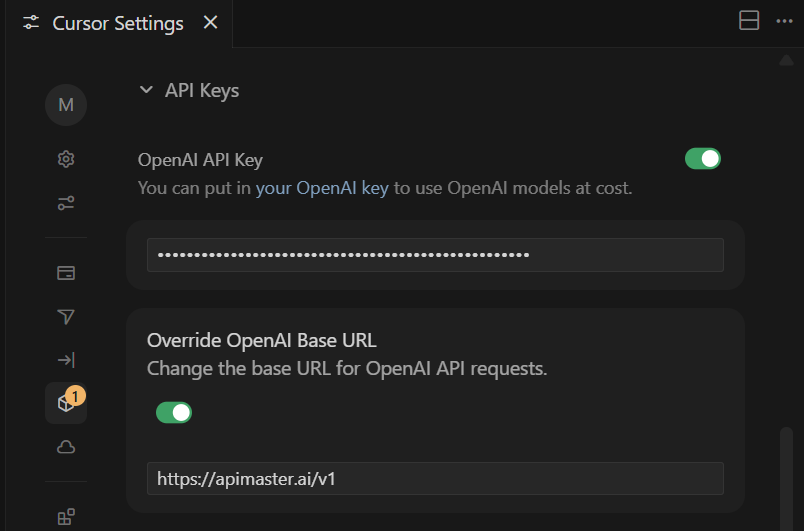
Step 1: API Key and Base URL
Open Cursor Settings → Models (or API Keys).
Enable OpenAI API Key and paste your APIMaster key.
Enable Override OpenAI Base URL:
https://apimaster.ai/v1Include the
/v1suffix.
Step 2: Add a custom model
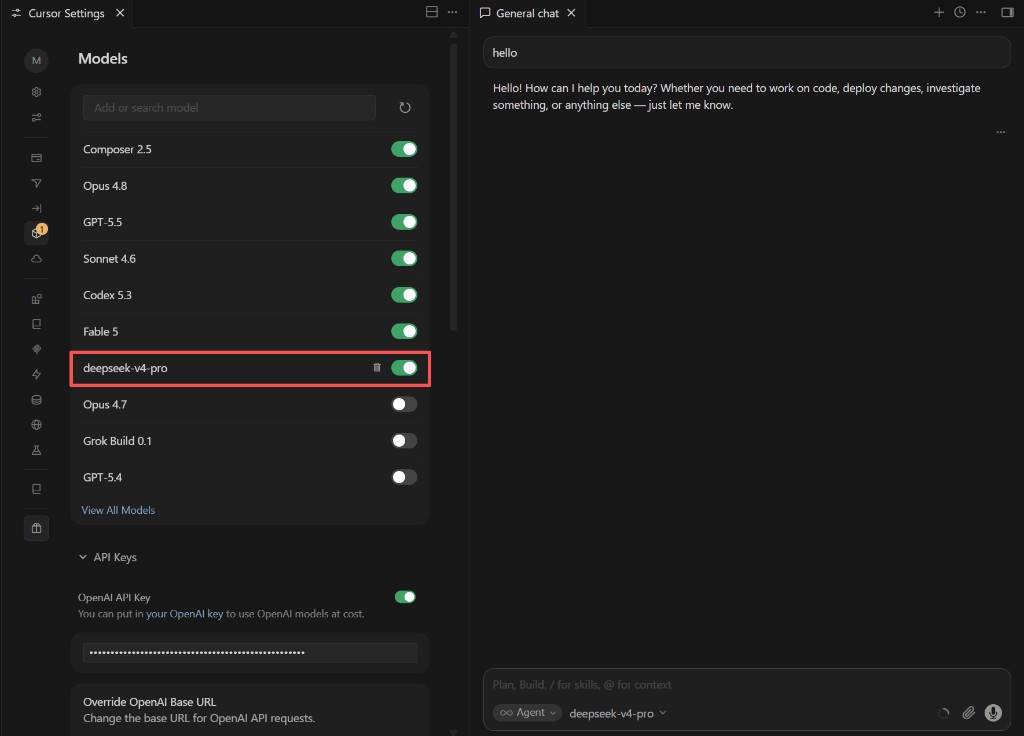
- Click Add model.
- Enter a marketplace model id (e.g.
deepseek-v4-pro). - Enable it and select it in the chat model picker.
Step 3: Test
Send a message in Cursor chat. If the footer shows deepseek-v4-pro and you get a reply, traffic is going through APIMaster.
Method 1 limits: built-in GPT & Claude
With the same Settings third-party key, GPT and Claude names often behave differently:
1. Cannot add duplicate built-in names
Adding gpt-5.4, gpt-5.5, or some Claude ids may fail—Cursor already reserves those slots for official Cursor routes.
Fix: Use Method 2 (Codex / Claude Code extensions) for GPT and Claude on APIMaster.
2. Built-in GPT errors after configuring APIMaster
Selecting Cursor’s built-in GPT-5.4 / GPT-5.5 while Override Base URL points to APIMaster can error—the built-in route conflicts with your custom base URL.
Fix: Use the Codex side panel, not built-in GPT models.
3. Built-in Claude uses Cursor Pro quota
Built-in Claude/Sonnet in the main chat usually bills Cursor Pro, not your APIMaster key.
Fix: Use the Claude Code extension panel.
Method 2: Codex & Claude Code extensions (GPT & Claude)
Install official extensions and point them at APIMaster via the same config files as CLI.
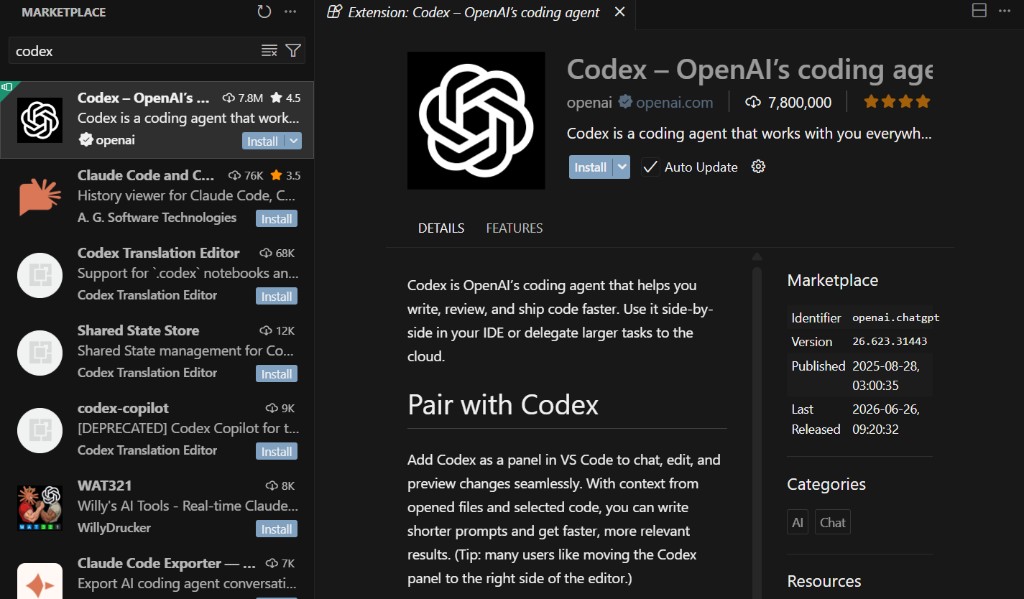
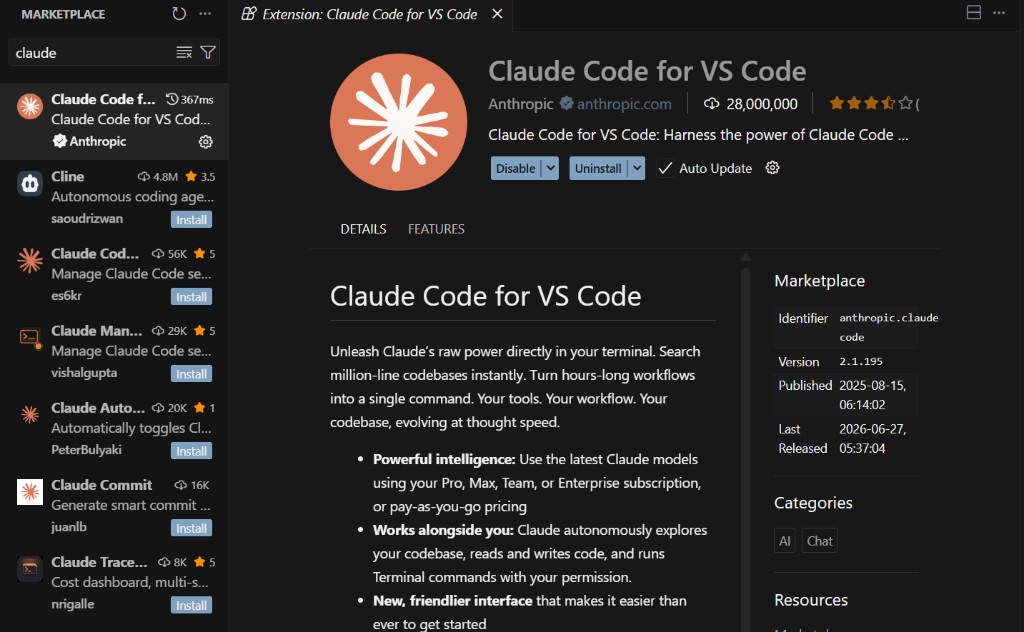
Install
- Codex – OpenAI's coding agent (
openai) - Claude Code for VS Code (
Anthropic)
Configure APIMaster
| Extension | Guide | Files | Base URL |
|---|---|---|---|
| Codex (GPT) | Codex setup | ~/.codex/config.toml, auth.json |
https://apimaster.ai/v1 |
| Claude Code | Claude Code setup | ~/.claude/settings.json |
https://apimaster.ai (no /v1) |
See each guide for full file contents and backup instructions.
Use in Cursor
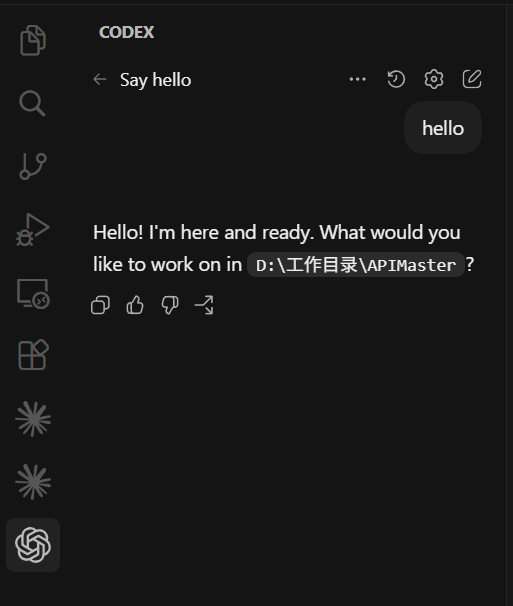
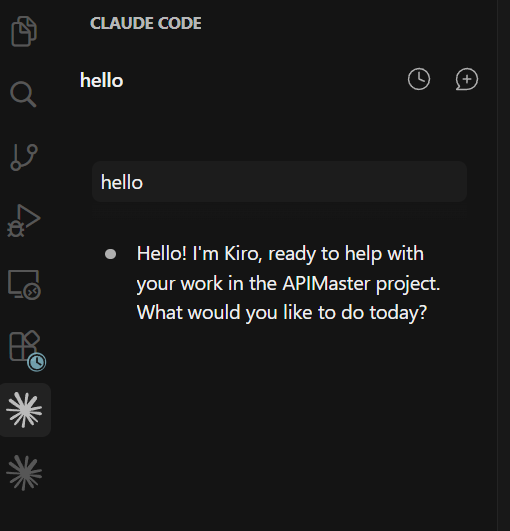
Open the CODEX or CLAUDE CODE activity bar icon and chat there—billing uses APIMaster, separate from Cursor’s built-in models.
Troubleshooting
| Issue | Fix |
|---|---|
| No API key / override option | Requires Cursor Pro |
| 401 | Check key; no extra spaces |
| 404 model | Match marketplace id exactly |
Cannot add gpt-5.4 |
Use Codex extension |
| Claude still uses Pro quota | Use Claude Code panel |
| Codex hits OpenAI | Full-file replace ~/.codex configs per guide |